Apache Spark Programming with Databricks

Databricks Workspaces
A databricks workspace is an environment for accessing all of your databricks assets. The workspace organizes object such as notebooks, libraries, and experiments into folders and it provides access to data and computational resources such as clusters and jobs.
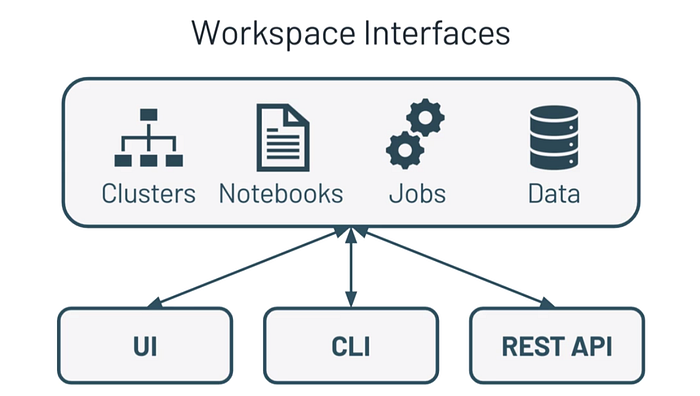
You can manage the workspace using the workspace UI, Databricks Command Line Interface (CLI) or the Databricks REST API.
The Databricks workspace UI provides an easy-to-use to graphical interface to workspace folders and their contained objects, data objects, and computation resources.
Databricks Workspace Assets
A Databricks Cluster is a set of computation resources and configurations of which you run data engineering, data science, and data analytics workloads. For example, production ETL pipelines, streaming analytics ad-hoc analytics, machine learning.
Clusters
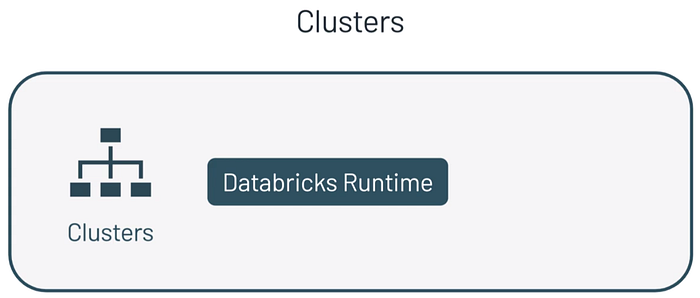
You run these workloads as a set of commands in a notebook or as an automated job.
Databricks makes a distinction between all-purpose clusters, and job clusters.
All Purpose Clusters — to analyze data collaboratively using interactive notebooks
- You can create an all-purpose cluster using the UI, CLI, or REST API.
- You can manually terminate and restart an all-purpose cluster.
- Multiple users can share these clusters to do collaborative, interactive analysis.Job clusters — to run fast, and robust automated jobs
- The databricks job scheduler creates a job cluster when you run a job on a new job cluster and it terminates the cluster when the job is complete.
- You cannot restart a job cluster
Notebooks
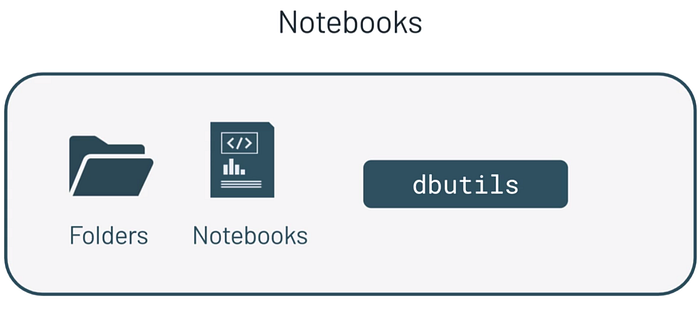
Most of the work done in the workspace is done through a databricks notebooks. Each notebook is a web-based interface, composed by a group of cells that allows you to execute coding commands. If you’re familiar with Jupyter notebooks you’ll be right at home. Datatabricks notebooks are unique in that they can run code in a variety of languages including Scala, Python, R and SQL. They can also contain MarkDowns.
Databricks notebooks can be exported into .DBC files to be shared with other databricks users who simply import the .DBC files into their own databricks workspace.
In the databricks workspace, notebooks take the place of traditional SQL clients. In other words, you still run the same SQL queries you’re accustomed to but you do this in the notebook environment.
Job
Once you add your code to a notebook, a job allows you to run your notebook either immediately or on a scheduled basis. The ability to schedule notebooks on a daily or a weekly basis, allows Data Analysts to programmatically generate repots and BI dashboards without manual involvement.
You can create and run jobs using the UI, the CLI, and by invoking the jobs API.
You can monitor job run results in the UI, using the CLI, by querying the API and through email alerts.
Data
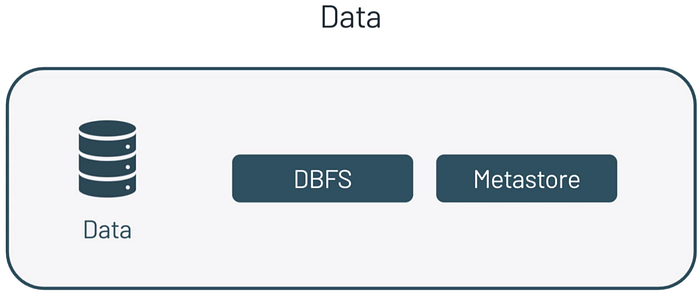
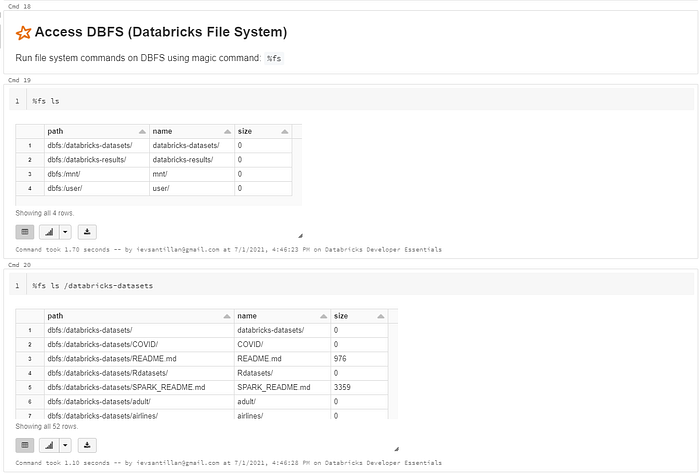
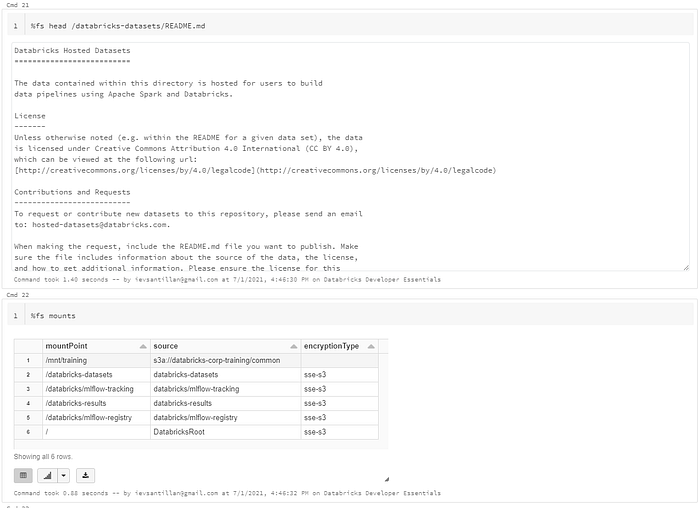
The databricks file system or DBFS is a distributred file system mounted into each databricks workspace. DBFS contains directories which can contains like data files, libraries and images and other directories.
Databricks datasets
Databricks includes a variety of datasets within the Workspace that you can use to learn Spark or test out algorithms. You’ll see these throughout the getting started guide. The datasets are available in the
/databricks-datasetsfolder.
DBFS is automatically populated with some datasets that you can use to learn databricks. The data that you see in your databricks workspace is actually stored in external data sources. Because DBFS is a layer over a cloud based object store. Files in DBFS are persisted to that object store. Through the databricks file system, Databricksused optimized access patterns and security permission to access and load the data you need. Because of this no data migration or duplication is needed when to run analytics from databricks.
Every Databricks deployment has a central Metastore. The metastore manages tables and permissions and enables users to share data.
Databricks Notebook Utilities covered:
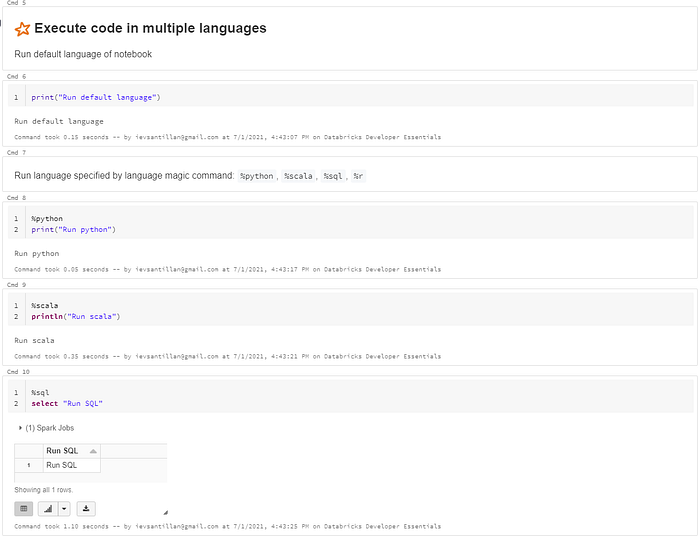
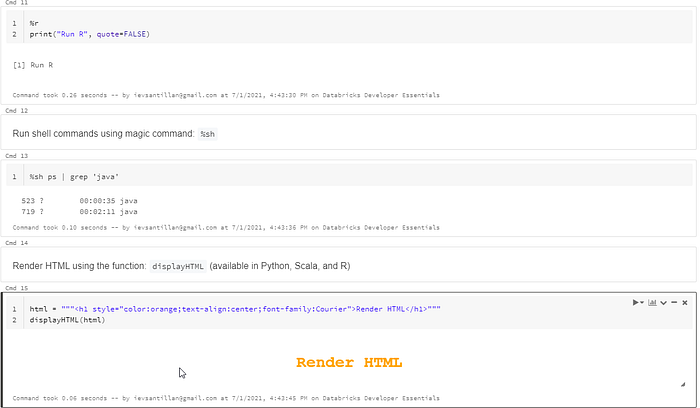
Magic commands: %python, %scala, %sql, %r, %sh, %md
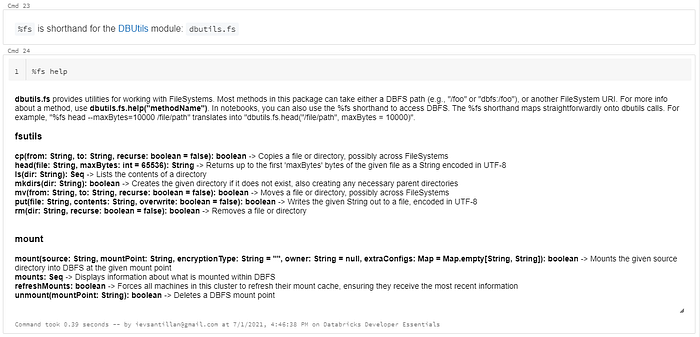
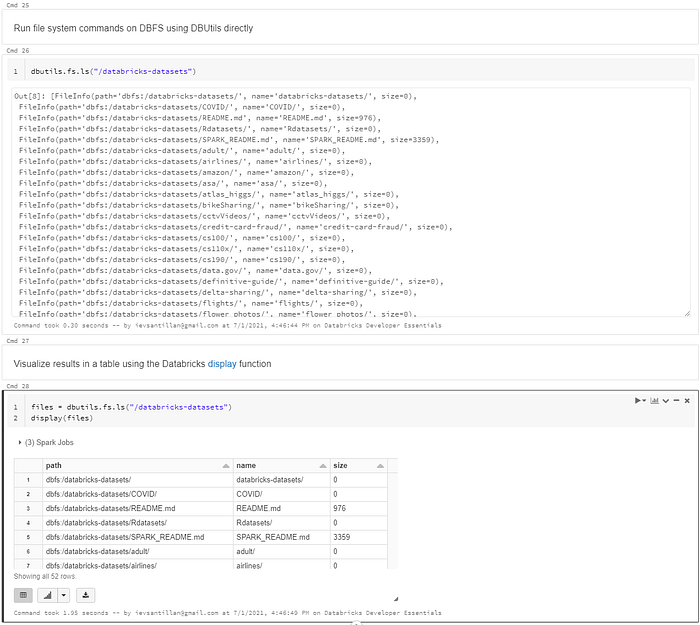
DBUtils: dbutils.fs (%fs), dbutils.notebooks (%run), dbutils.widgets
Visualization: display, displayHTML
Magic commands
Access DBFS (Databricks File System)
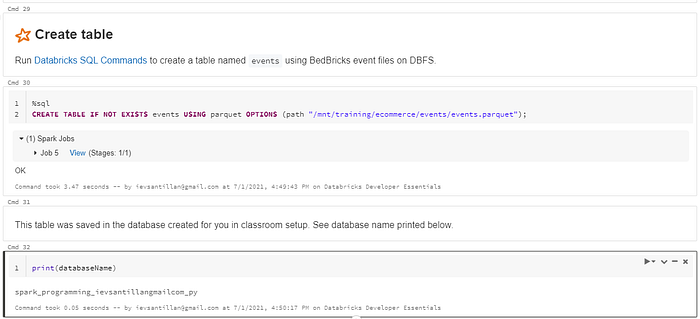
Create Table
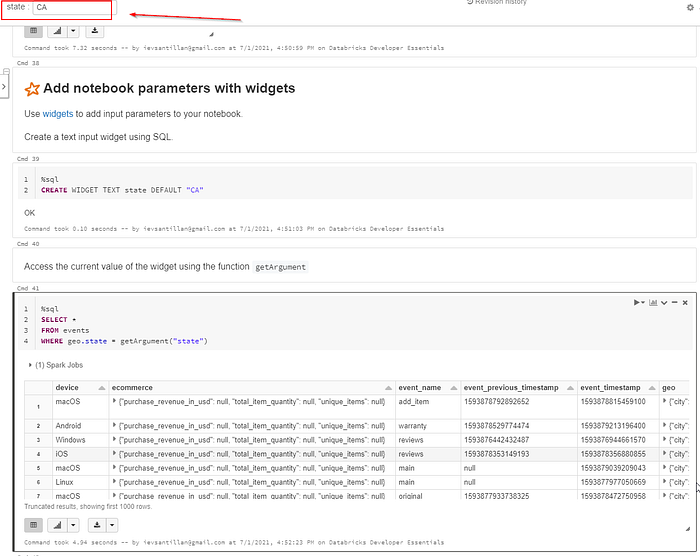
Add notebook parameters with widgets